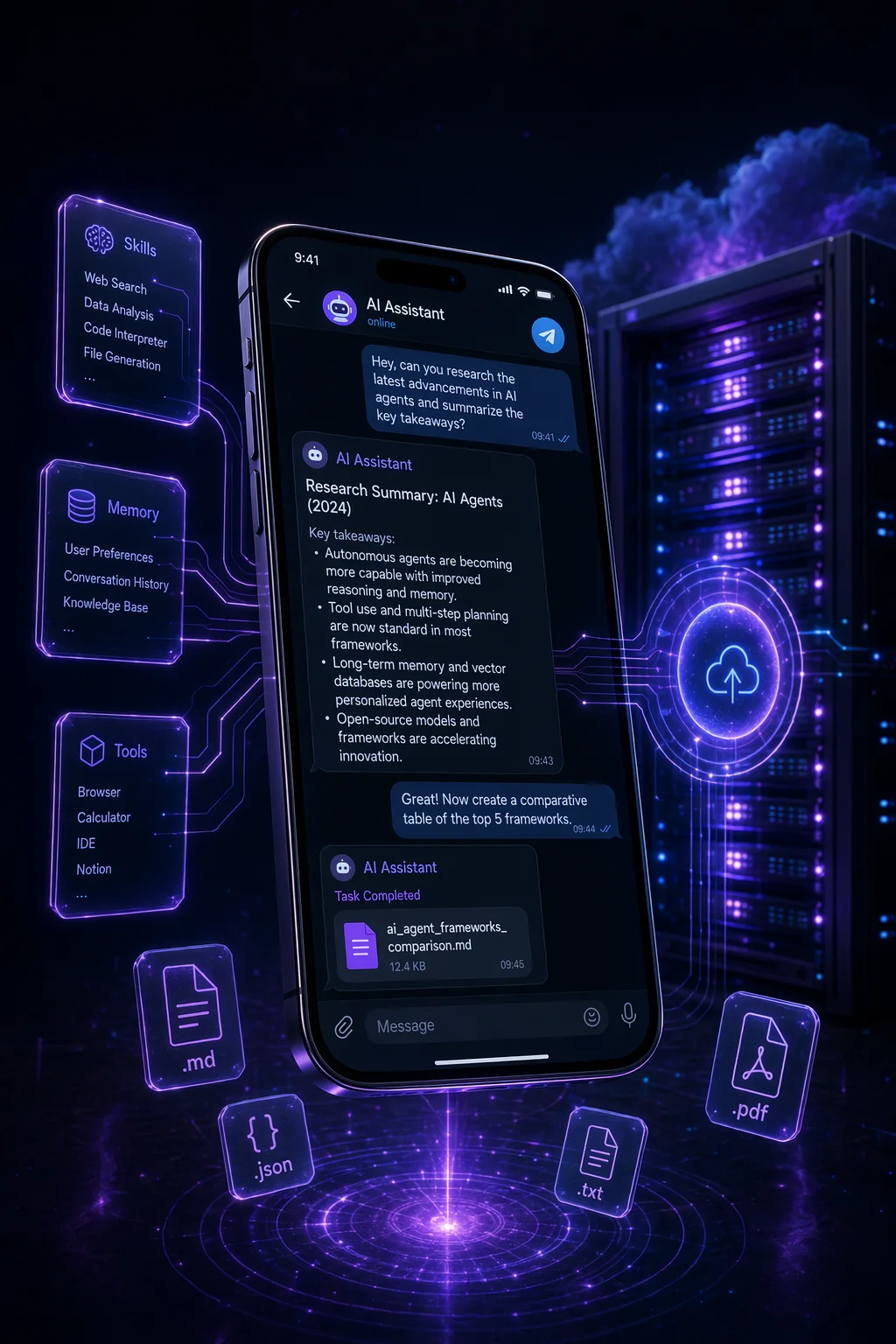
Telegram is the best entry point for Hermes Agent. It's available on every device, has a clean API, and lets you interact with your AI agent from anywhere, your phone while commuting, your laptop at a coffee shop, or your desktop at home. This tutorial walks through the complete setup from zero to a working Hermes Agent Telegram bot.
Why Telegram for Hermes?
Among the 16 platforms Hermes Agent supports, Telegram stands out for several reasons:
Accessibility: Telegram works on iOS, Android, Windows, Mac, and Linux. Your agent is always one tap away regardless of device.
Bot ecosystem: Telegram's Bot API is mature, well-documented, and reliable. Bots behave predictably and the API rarely changes in breaking ways.
File sharing: You can send files, images, documents, and voice messages directly to your Hermes bot. This opens up use cases like "analyze this PDF" or "what's in this image" by simply forwarding the file.
Groups and channels: You can add your Hermes bot to group chats, making it accessible to your team or community members (with appropriate permissions).
No character limits: Unlike Twitter/X or some other platforms, Telegram messages support long responses, code blocks, formatted text, and file attachments.
Prerequisites
Before starting, make sure you have:
- A Linux VPS or local Linux machine (Ubuntu 20.04+ recommended)
- Python 3.10 or higher installed
- A Telegram account
- An OpenRouter API key (free at openrouter.ai)
- About 30-60 minutes
Part 1: Create Your Telegram Bot
Step 1: Start a Chat with BotFather
Open Telegram and search for @BotFather. This is Telegram's official bot management tool.
Start a conversation and send:
/newbotStep 2: Name Your Bot
BotFather will ask for two things:
Display name: The friendly name shown in the chat header. Example: Hermes Assistant or My AI Agent
Username: The @handle used to find the bot. Must end in bot. Example: hermes_myname_bot
Choose something memorable. The username can't be changed later.
Step 3: Save Your Token
BotFather will respond with a message containing your bot token - a long string that looks like:
5839271049:AAF3k9dPm2X_example_token_hereSave this immediately. This token is how Hermes connects to your Telegram bot. Keep it secret, anyone with this token can control your bot.
Step 4: Configure Bot Settings (Optional but Recommended)
While in BotFather, set up a few more things:
/setdescriptionAdd a description: "My personal Hermes AI agent"
/setprivacySet to Disable if you want the bot to read all messages in groups. Set to Enable if you only want it responding to direct commands.
/setcommandsAdd basic commands:
help - Show available commands
        memory - Show current memory summary
        skills - List available skills
        clear - Clear conversation context
Part 2: Install Hermes Agent
Step 1: Update Your System
SSH into your VPS:
ssh root@your-server-ipUpdate and install dependencies:
apt update && apt upgrade -y
        apt install python3 python3-pip python3-venv git screen curl -y
Step 2: Clone the Repository
cd ~
        git clone https://github.com/NousResearch/hermes-agent
        cd hermes-agent
Step 3: Create Virtual Environment
python3 -m venv venv
        source venv/bin/activate
Step 4: Install Requirements
pip install -r requirements.txtThis will take 2-5 minutes. You'll see packages being installed for OpenAI API compatibility, Telegram bot libraries, SQLite handling, and various utility libraries.
Part 3: Configure Hermes
Step 1: Create Your Environment File
cp .env.example .env
        nano .env
Fill in the following values:
# Required: OpenRouter API key
        OPENROUTER_API_KEY=sk-or-your-key-here

        # Required: Telegram bot token from BotFather
        TELEGRAM_BOT_TOKEN=your_bot_token_here

        # Your Telegram user ID (get this from @userinfobot on Telegram)
        TELEGRAM_AUTHORIZED_USERS=your_numeric_user_id

        # Primary AI model (Claude recommended for quality)
        PRIMARY_MODEL=anthropic/claude-3.5-sonnet

        # Auxiliary model for routing (free)
        AUXILIARY_MODEL=nvidia/nemotron-4-340b-instruct:free

        # Database path
        DB_PATH=./hermes.db

        # Memory file path
        MEMORY_PATH=./memory.md
Step 2: Get Your Telegram User ID
To restrict your bot to only respond to you, you need your numeric Telegram user ID.
Open Telegram and message @userinfobot. It will reply with your user ID: a number like 1234567890. Add this to TELEGRAM_AUTHORIZED_USERS.
Step 3: Create Your Memory File
cat > memory.md << 'EOF'
        # About Me
        Name: [Your name]
        Location: [Your timezone/city]
        Occupation: [What you do]

        # Current Projects
        [List your active projects]

        # My Preferences
        - Communication style: Direct and concise
        - Technical level: [Beginner/Intermediate/Advanced]
        - Response format: Use bullet points for lists

        # Tools I Use
        [List tools you commonly use]
        EOF
Edit this file with your actual information. The more context you give Hermes from the start, the faster it becomes genuinely useful.
Part 4: Launch and Test
Step 1: Start Hermes in a Screen Session
Screen keeps your bot running even when you disconnect from SSH:
screen -S hermes
        source venv/bin/activate
        python main.py
You should see output like:
[INFO] Hermes Agent starting...
        [INFO] Loading memory from memory.md
        [INFO] Initializing database...
        [INFO] Telegram bot connected: @your_bot_name
        [INFO] Hermes is ready. Waiting for messages...
Step 2: Detach from Screen
Press Ctrl+A then D to detach. The bot keeps running in the background.
Step 3: Test Your Bot
Open Telegram and find your bot by its username. Send it a message:
Hello! Can you introduce yourself?Hermes should respond with a personalized greeting that references what you put in memory.md.
Step 4: Test Some Skills
Try these to verify everything is working:
Search the web for: latest Hermes Agent updatesWhat do you know about me so far?Create a simple Python script that prints "Hello World"Part 5: Reconnect and Monitor
Reconnect to Your Screen Session
screen -r hermesCheck Logs
# View recent logs
        tail -f hermes.log

        # Check for errors
        grep "ERROR" hermes.log
Restart if Needed
screen -r hermes
        # Ctrl+C to stop
        python main.py
        # Ctrl+A, D to detach
Part 6: Auto-Restart on VPS Reboot
Create a systemd service so Hermes restarts automatically if your VPS reboots:
cat > /etc/systemd/system/hermes.service << 'EOF'
        [Unit]
        Description=Hermes Agent
        After=network.target

        [Service]
        Type=simple
        User=root
        WorkingDirectory=/root/hermes-agent
        ExecStart=/root/hermes-agent/venv/bin/python main.py
        Restart=always
        RestartSec=10

        [Install]
        WantedBy=multi-user.target
        EOF

        systemctl daemon-reload
        systemctl enable hermes
        systemctl start hermes
Check status:
systemctl status hermesCommon Issues and Fixes
Bot not responding:
- Check your bot token is correct in .env
- Verify the bot is running (
screen -r hermes) - Check your TELEGRAM_AUTHORIZED_USERS matches your actual user ID
OpenRouter errors:
- Verify your API key in .env
- Check your OpenRouter account has credits
- Try switching to a different primary model
High API costs:
- Make sure AUXILIARY_MODEL is set to a free model
- Review which tasks are hitting the primary model
- Consider adding more specific routing rules
Memory not persisting:
- Check MEMORY_PATH points to a writable location
- Verify memory.md exists and is readable
What to Try First
Once your bot is running, here are the most immediately useful things to test:
- Daily briefing: "Give me a summary of today's top AI news"
- Research: "Research [topic] and give me 5 key insights"
- Writing help: "Help me write an email to [describe situation]"
- Code help: "Write a Python script that [describe what you need]"
- Planning: "I need to [describe goal]. Break this down into steps"
Each interaction that goes well gets remembered. Within a week of regular use, Hermes will start anticipating your needs and producing outputs that require minimal editing.
Next Steps
With your Telegram bot running, consider:
- Setting up scheduled morning briefings (Hermes can send you a daily digest automatically)
- Adding web search skills for research tasks
- Connecting Hermes to your calendar for scheduling assistance
- Building custom skills for tasks you repeat frequently
The Telegram interface is just the starting point. As you become comfortable with Hermes through Telegram, you can expand to other platforms, Discord for community interactions, email for client communication, or direct API access for integration with your own tools.
Published on ai.quantummerlin.com, Your source for practical AI agent intelligence